Work,
with you.
A clearer place for the next step. Bring your matters, drafts and decisions together—without turning your practice into a chat window.
A little more doing.
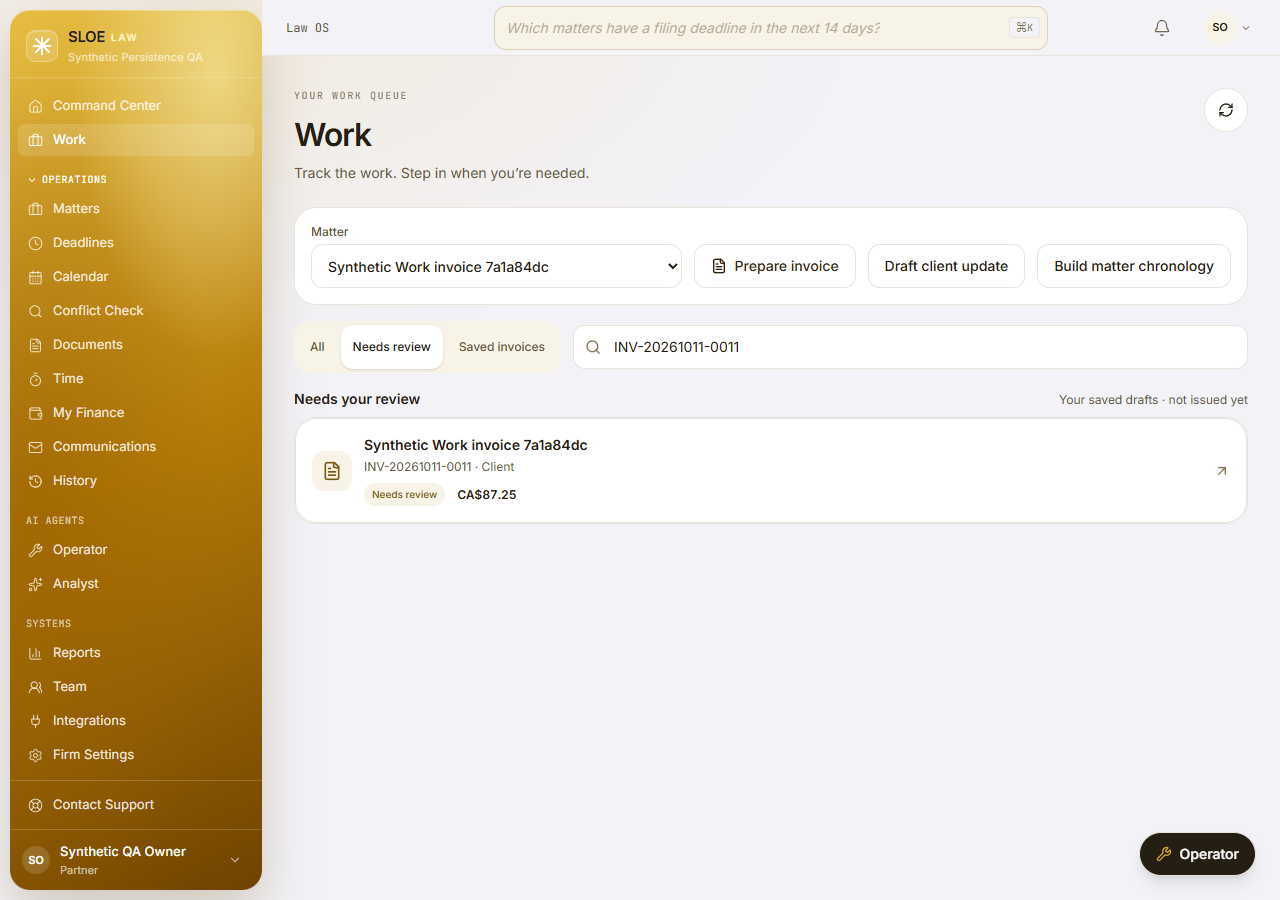
Choose the work
that matters.
Start with a matter, not a blank prompt. Work brings useful next steps together with the drafts you’ve already saved.
Prepare an invoice
Review the recorded work and invoice draft before deciding what comes next.
Draft a client update
Turn the next update into a private, editable draft. Keep your voice in it.
Build a matter chronology
Bring the sequence into focus, review the sources and edit your saved draft.
Prepare. Review. Then decide.
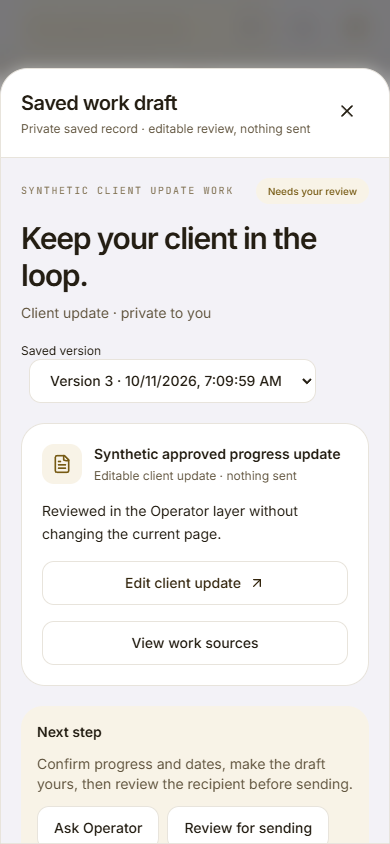
Make it
yours.
The draft is a starting point, not the final word. Review the wording, edit what matters and keep a saved version you can come back to.
- Editable drafts
- Private saved work
- Sending stays a separate decision
Look closer.
Keep your place.
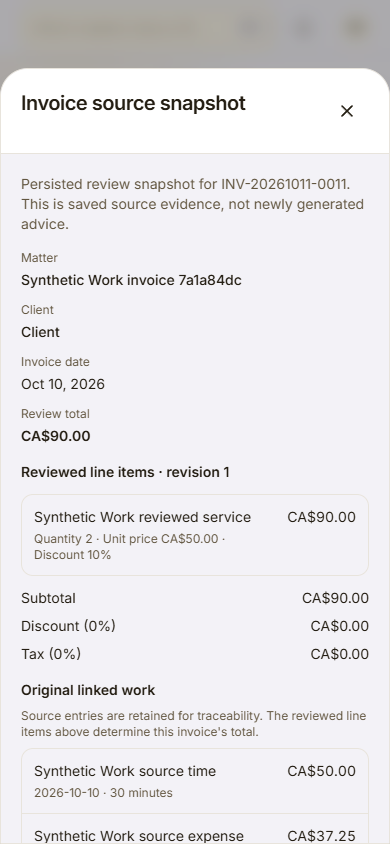
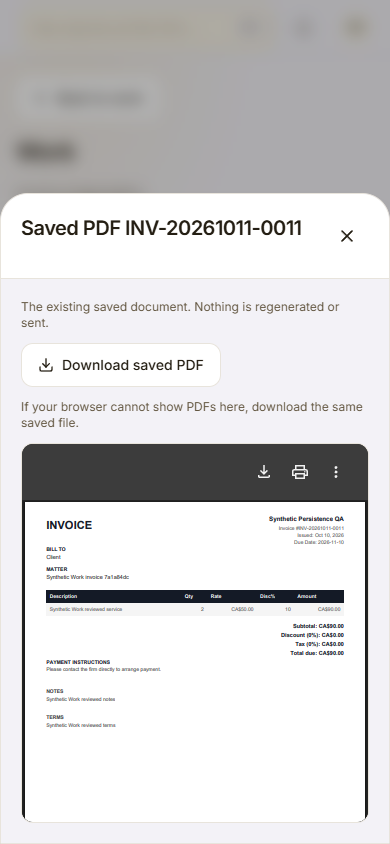
Open the recorded source snapshot. Check the linked work. Read the saved invoice PDF in its own layer, then return to the decision you were making.
The detail comes to you.
It doesn’t take you away.
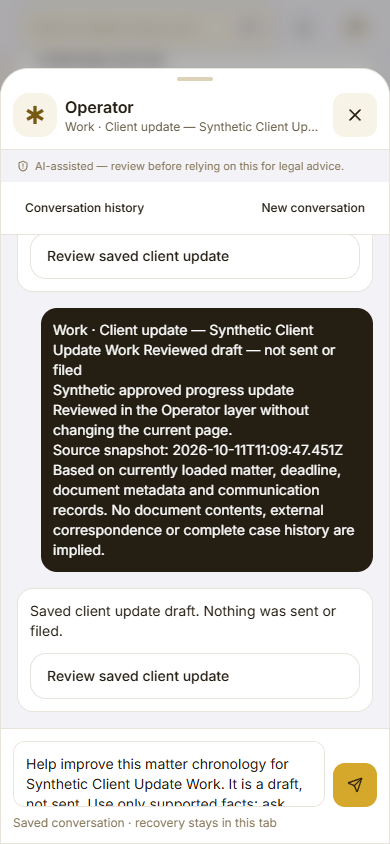
Help stays
beside the work.
Ask Operator about the draft you’re reviewing. Keep the matter in view, keep your place and choose your next move.
An assistant when you need one.
Your workspace when you don’t.
Close at hand.
Out of your way.
Your phone gets its own rhythm. Work in the dock. Operator right in the middle. Focused layers for the detail, instead of a desktop sidebar squeezed into a smaller screen.
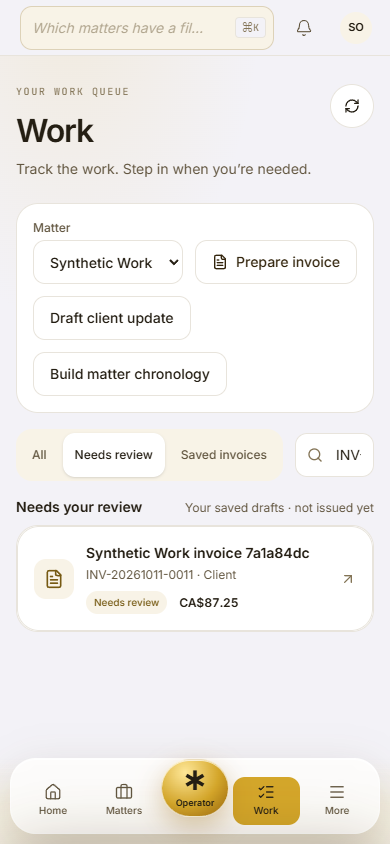
A more natural fit.
Clear from
the start.
Does Work send anything for me?
No. Preparing or saving a Work draft does not send a client message or charge a payment. Review comes first; any later action is a separate decision.
Do I have to use the assistant?
No. Matters, calendar, documents, time and billing remain ordinary screens. Operator is there when you want help, not a replacement for navigating your practice.
What can I prepare in Work?
V3 includes invoice preparation, client update drafts and matter chronologies. These are user-started, reviewable drafts—not a promise of autonomous background work.
Make it yours.
One workspace for the work.
Room for the way you work.